
WO Mic Wi-Fi & Wi-Fi Direct Setup Guide: IP Address, Port 8125 & Low-Latency Tuning
Connecting WO Mic over 5 GHz Wi-Fi (or Wi-Fi Direct Hotspot) lets you use your Android phone or iPhone as a wireless PC microphone with 35–80 ms round-trip latency at 48 kHz 16-bit audio quality. To establish a stable wireless link, both devices must share the same local subnet, the WO Mic Windows Client must connect to the local IPv4 address displayed in the mobile app, and UDP/TCP port 8125 must be allowed through Windows Firewall.
1. Standard Wi-Fi vs. Wi-Fi Direct (Mobile Hotspot): Which Should You Choose?
WO Mic offers two distinct wireless modes depending on whether you are at home with a router or working on a laptop away from home:
| Wireless Mode | How Devices Connect | Default IP & Latency | Best Scenario |
|---|---|---|---|
| Wi-Fi (Home Router) | Phone on Wi-Fi + PC on Wi-Fi or Ethernet to the same router | 192.168.x.x · 35–80 ms | Home desk setups, Discord, Zoom, OBS |
| Wi-Fi Direct (Hotspot) | Turn ON Mobile Hotspot on Android; connect PC Wi-Fi directly to phone | 192.168.43.1 · 28–55 ms | Hotels, dorms, or routers with AP Client Isolation |
2. Step-by-Step: Connecting WO Mic Over Home Wi-Fi
- Connect Both Devices to the Same Router: Your PC can be plugged into the router via an Ethernet cable while your phone is connected to the router's 5 GHz Wi-Fi band (5 GHz avoids 2.4 GHz Bluetooth/microwave interference and cuts jitter in half).
- Start the Server on Your Phone First: Open the WO Mic app on Android or iPhone, tap Settings → Transport → Wi-Fi, return to the main screen, and tap the ▶ Start button. The app will display a status message like
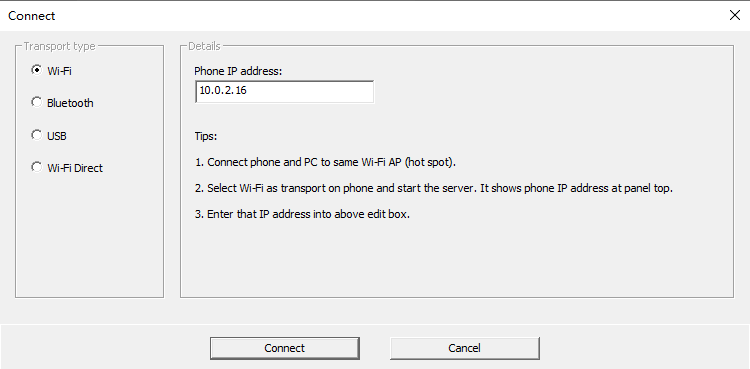
Listening on 192.168.1.45:8125. - Enter the IP Address in the Windows Client: Open the WO Mic Client on your PC, click Connection → Connect, select Wi-Fi, type the exact IPv4 address shown on your phone screen (e.g.,
192.168.1.45), and click Connect.
3. How to Fix 'Connect Failed' Over Wi-Fi (4 Common Network Blocks)
If clicking Connect times out with "Failed to connect to server", one of four local network rules is blocking TCP control port 8125 or UDP audio packets:
- 1. Windows Network Profile Set to 'Public' + Firewall Block: Open Windows Security → Firewall & network protection → Allow an app through firewall, locate WO Mic Client, and tick both Private and Public checkboxes (or add an inbound UDP/TCP rule for port
8125). - 2. iOS 17/18 'Local Network' Permission Denied: On iPhone and iPad, open iOS Settings → Privacy & Security → Local Network and ensure the toggle next to WO Mic is turned ON.
- 3. Router Guest Wi-Fi / AP Isolation: If your phone is on a "Guest" Wi-Fi SSID or a university/apartment network with AP Client Isolation enabled, devices are blocked from talking to each other. Switch to Wi-Fi Direct mode or USB transport.
- 4. Active VPN on Phone or PC: A VPN with "Kill Switch / Block LAN traffic" enabled routes
192.168.x.xpackets into the VPN tunnel instead of your home LAN. Enable Allow LAN traffic / Split Tunneling in your VPN settings.
4. Preventing Wi-Fi Dropouts & Robotic Audio After 5 Minutes
When a phone screen turns off, Android and iOS aggressively throttle Wi-Fi radio power, causing audio to sound robotic or disconnect after 5 minutes. On Android, open Settings → Apps → WO Mic → Battery and select Unrestricted, enable Keep screen on inside the WO Mic app settings, and check Auto-Reconnect in the PC client. For additional fixes, see our WO Mic Troubleshooting Guide.
Frequently Asked Questions
Can I use WO Mic over Wi-Fi if my PC is connected to the router with an Ethernet cable?
Yes! As long as your PC's Ethernet cable and your phone's Wi-Fi connect to the same home router, they share the same 192.168.x.x local network and communicate with even lower jitter than Wi-Fi-to-Wi-Fi.
Does WO Mic Wi-Fi mode use my internet data or work without internet?
It uses zero internet data. Audio travels strictly inside your local Wi-Fi router (or phone hotspot) and works even if your ISP internet connection is down.
Why did my phone's IP address change today?
Home routers assign dynamic DHCP IP addresses every 24–48 hours. Always check the IP address currently shown inside the WO Mic mobile app, or reserve a static DHCP lease for your phone in your router settings.
What port number does WO Mic use?
By default, WO Mic uses control port 8125 (TCP) and media port 8125 (UDP). You can change the port number inside Settings if another application on your PC uses 8125.