
WO Mic PC: Download the Windows Client & Virtual Driver (v6.3)
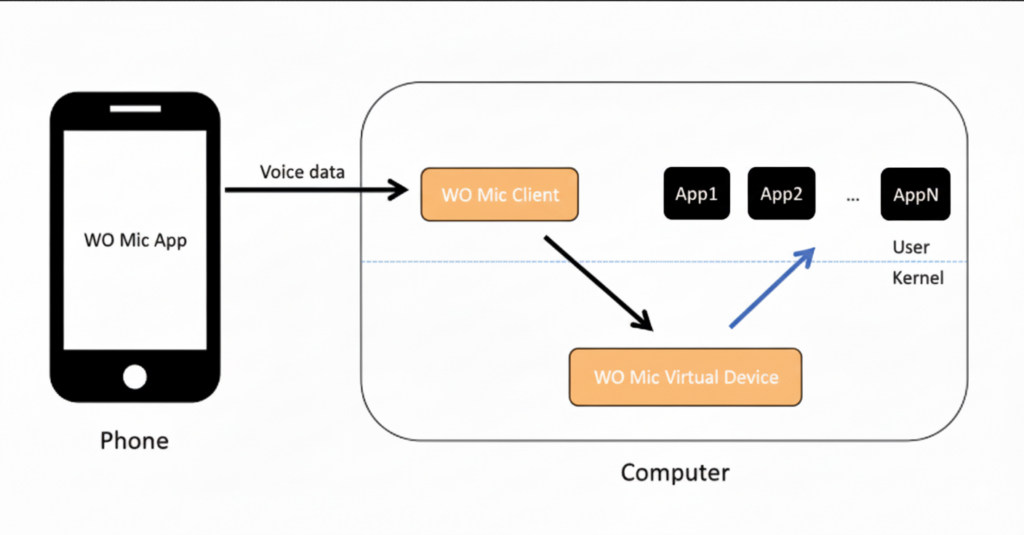
The WO Mic Windows Client receives the audio stream from your Android phone or iPhone and routes it into the WO Mic Virtual Device kernel driver on Windows 7, 8, 10, and 11 (32-bit & 64-bit). Once connected, any PC application — Discord, Zoom, OBS Studio, Skype, Microsoft Teams, or in-game voice chat — recognizes your phone as a standard microphone.
Download WO Mic Client & Driver v6.3 for Windows
Package Details & System Requirements
| Latest Version | v6.3 (2026 Release — bundled client + signed WDM virtual audio driver) |
| Supported Windows OS | Windows 11, Windows 10, Windows 8.1, Windows 7 (x86 & x64) |
| Transports Supported | USB (ADB, 18–30 ms), Wi-Fi (UDP 8125, 35–80 ms), Wi-Fi Direct, Bluetooth |
| Prerequisite Runtime | Microsoft Visual C++ 2015–2022 Redistributable (x86) — Download vc_redist.x86.exe |
| License | Freeware |
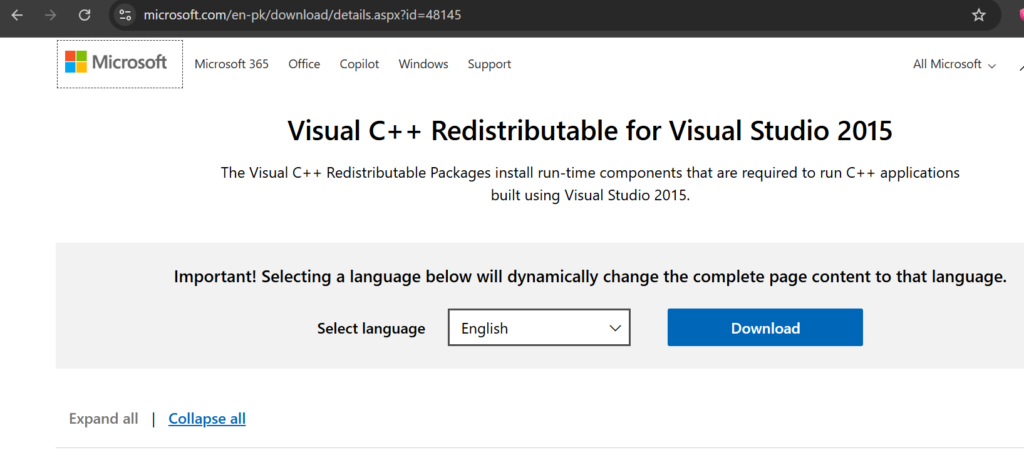
Step 1: Install Visual C++ Redistributable (x86)
The WO Mic Windows client is a 32-bit native application and requires the x86 Visual C++ runtime even on 64-bit Windows. If you see a MSVCP140.dll or VCRUNTIME140.dll was not found error when launching the client, install vc_redist.x86.exe first.
Step 2: Install the WO Mic Client & Virtual Driver
- Download and run the WO Mic Client & Driver v6.3 installer as Administrator.
- Keep the WO Mic Virtual Driver checkbox selected for your Windows version and complete the setup.
- Open Windows Device Manager → Sound, video and game controllers and verify that WO Mic Device is listed without warning icons. Detailed driver checks are covered in our WO Mic Virtual Device Driver guide.
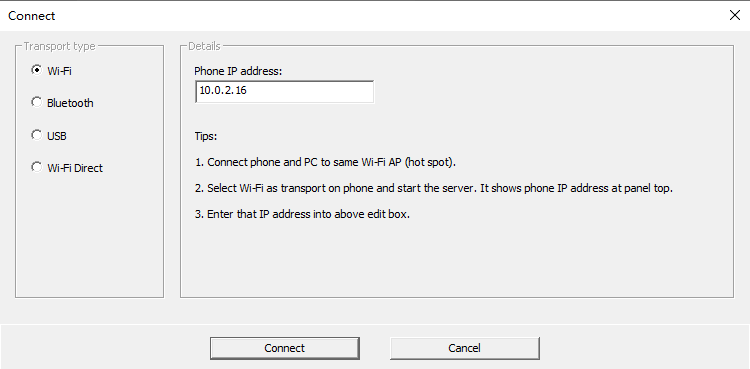
Step 3: Pair Your Phone with the Windows Client
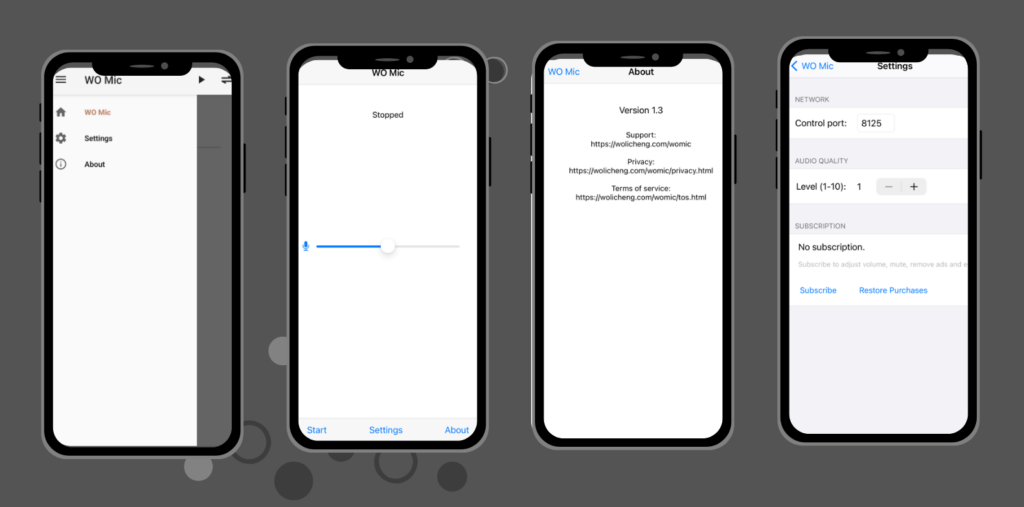
- Install the mobile app on your Android phone or iPhone, choose your transport (USB or Wi-Fi), and tap the Start button.
- Launch the WO Mic Client on your PC and click Connection → Connect.
- Select the matching transport (for Wi-Fi, enter the IP address displayed in the mobile app; for USB, ensure USB Debugging is enabled) and click Connect.
Step 4: Set WO Mic as Your Default Recording Input
Open Windows Settings → System → Sound → Input (or your target app such as Discord or OBS Studio) and select Microphone (WO Mic Device). If you experience any connection or audio issues, check our WO Mic Troubleshooting Guide.
WO Mic Technical Specifications
Measured on the current 6.3 client against a Pixel 7 (Android 15) and an iPhone 15 (iOS 18) over a 5 GHz Wi-Fi 6 access point. Values are typical, not best-case marketing numbers.
| PARAMETER | WI-FI | USB | BLUETOOTH |
|---|---|---|---|
| Round-trip latency | 35–80 ms | 18–30 ms | 120–220 ms |
| Sample rate | 48 kHz | 48 kHz | 8 / 16 kHz (SCO) |
| Bit depth | 16-bit PCM | 16-bit PCM | 8-bit CVSD / 16-bit mSBC |
| Channels | Mono | Mono | Mono |
| Transport | UDP 8125 + TCP control | ADB forward | HFP / SCO |
| CPU load (PC) | 1–2 % | 1–2 % | 2–3 % |
| Battery use (phone/h) | 6–9 % | 4–6 % | 5–8 % |
Latency measured with a loopback click track and an oscilloscope; values vary with driver version, Wi-Fi congestion and CPU power state.
Version History
Release notes for the Windows client. Older builds remain downloadable for users who need a specific version, but they lack the current driver fixes.
- 6.3 — 2026 · current. Reworked virtual driver installation, signed INF, 48 kHz default, improved USB reconnect handling.
- 5.2 — driver stability fixes, Bluetooth codec negotiation.
- 5.1 — Wi-Fi Direct transport, reduced packet loss on 2.4 GHz.
- 5.0 — new audio pipeline, lower latency over USB.
- 4.6.9 — last build with the legacy (non-INF) driver installer.