
WO Mic Bluetooth Setup Guide: How to Pair Android or iPhone with Windows 11 & 10
Connecting WO Mic over Bluetooth allows you to use your Android phone or iPhone as a wireless PC microphone without a USB cable and without needing a Wi-Fi router or hotspot. Because Bluetooth audio utilizes the Hands-Free Profile (HFP / RFCOMM) at 8–16 kHz with 120–220 ms latency, it works well for voice notes, dictation, and casual calls when USB or 5 GHz Wi-Fi are unavailable.
Step 1: Pair Your Phone and Windows PC in Bluetooth Settings First
Before opening the WO Mic client, your smartphone and Windows computer must be paired at the operating-system level:
- On your Windows 11 or Windows 10 PC, press Win + I to open Settings → Bluetooth & devices, turn Bluetooth On, and click Add device → Bluetooth.
- On your Android phone or iPhone, open Settings → Bluetooth and stay on that screen so your phone is discoverable.
- Select your phone's name on the PC screen, confirm that the 6-digit PIN code matches on both screens, and click Connect / Pair.
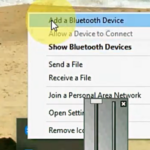
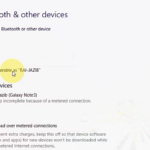
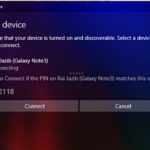
Step 2: Start the Bluetooth Server in WO Mic & Connect from PC
- Open the WO Mic app on your phone, tap Settings → Transport, and select Bluetooth.
- Return to the main app screen and tap ▶ Start. The status will read Waiting for connection via Bluetooth.
- Open the WO Mic Windows Client on your PC, click Connection → Connect, select Bluetooth, choose your paired phone from the dropdown list, and click Connect.
Bluetooth vs. Wi-Fi vs. USB: Honest Audio Quality & Latency Comparison
Why does Bluetooth have higher latency than USB or Wi-Fi? Standard Bluetooth RFCOMM/SCO links share the crowded 2.4 GHz radio band and use smaller packet buffers:
| Metric | Bluetooth Mode | 5 GHz Wi-Fi Mode | USB Cable (ADB) |
|---|---|---|---|
| Measured Latency | 120 – 220 ms | 35 – 80 ms | 18 – 30 ms |
| Audio Bandwidth | 8 / 16 kHz Voice | 48 kHz Fullband PCM | 48 kHz Fullband PCM |
| Router or Cable Needed? | None | Wi-Fi Router or Hotspot | USB Data Cable |
Troubleshooting Bluetooth Connection Failures
- Phone paired in Windows, but Bluetooth connect fails in WO Mic: Windows 11 sometimes disconnects idle Bluetooth devices after 10 seconds if no audio profile is active yet. Tap ▶ Start in the WO Mic phone app first, then toggle Bluetooth Off/On in Windows and click Connect in the PC client within 5 seconds.
- Don't use a Bluetooth Headset and Bluetooth WO Mic on the Same USB Dongle: A single USB Bluetooth 4.0/5.0 adapter cannot carry both high-bandwidth A2DP stereo audio to Bluetooth headphones and an incoming RFCOMM/SCO microphone stream without severe crackling. If you wear Bluetooth headphones, connect WO Mic over Wi-Fi or USB instead. For more fixes, see our WO Mic Troubleshooting Guide.
Frequently Asked Questions
Why does Windows say 'Paired' instead of 'Connected' under Bluetooth settings?
That is normal on Windows 10 and 11! A paired smartphone remains in 'Paired' standby state until the WO Mic PC Client actively opens the RFCOMM Bluetooth socket when you click Connection -> Connect.
Can I reduce Bluetooth latency for gaming or OBS streaming?
Bluetooth's 120–220 ms delay is a hardware protocol limit. If you need low latency without a home router, enable your phone's Mobile Hotspot and connect WO Mic using Wi-Fi Direct mode (28–55 ms) or a USB cable (24 ms).
Why is my phone not showing up in the WO Mic Client Bluetooth dropdown?
Close the WO Mic PC Client, unpair and re-pair your phone in Windows Settings -> Bluetooth & devices, then reopen the WO Mic Client so it refreshes the paired device registry list.
Does Bluetooth mode work on desktops without built-in Bluetooth?
Only if you plug in a USB Bluetooth 5.0/5.3 adapter. If your desktop PC has no Bluetooth adapter, use USB cable transport or home Ethernet/Wi-Fi transport instead.